

































Dietitian scheduling software: calendar, online booking and reminders
PlateSight's dietitian scheduling software brings your calendar, online booking requests, reminders and video call links together in one place. You book an appointment by dragging on the calendar; your client sees it in the app on their phone and replies. Below you will find the calendar, the online booking page, reminders and the video call link in turn, with pricing and frequently asked questions at the end of the page. Booking, moving and cancelling an appointment takes a few clicks; you do not need to message the client separately.
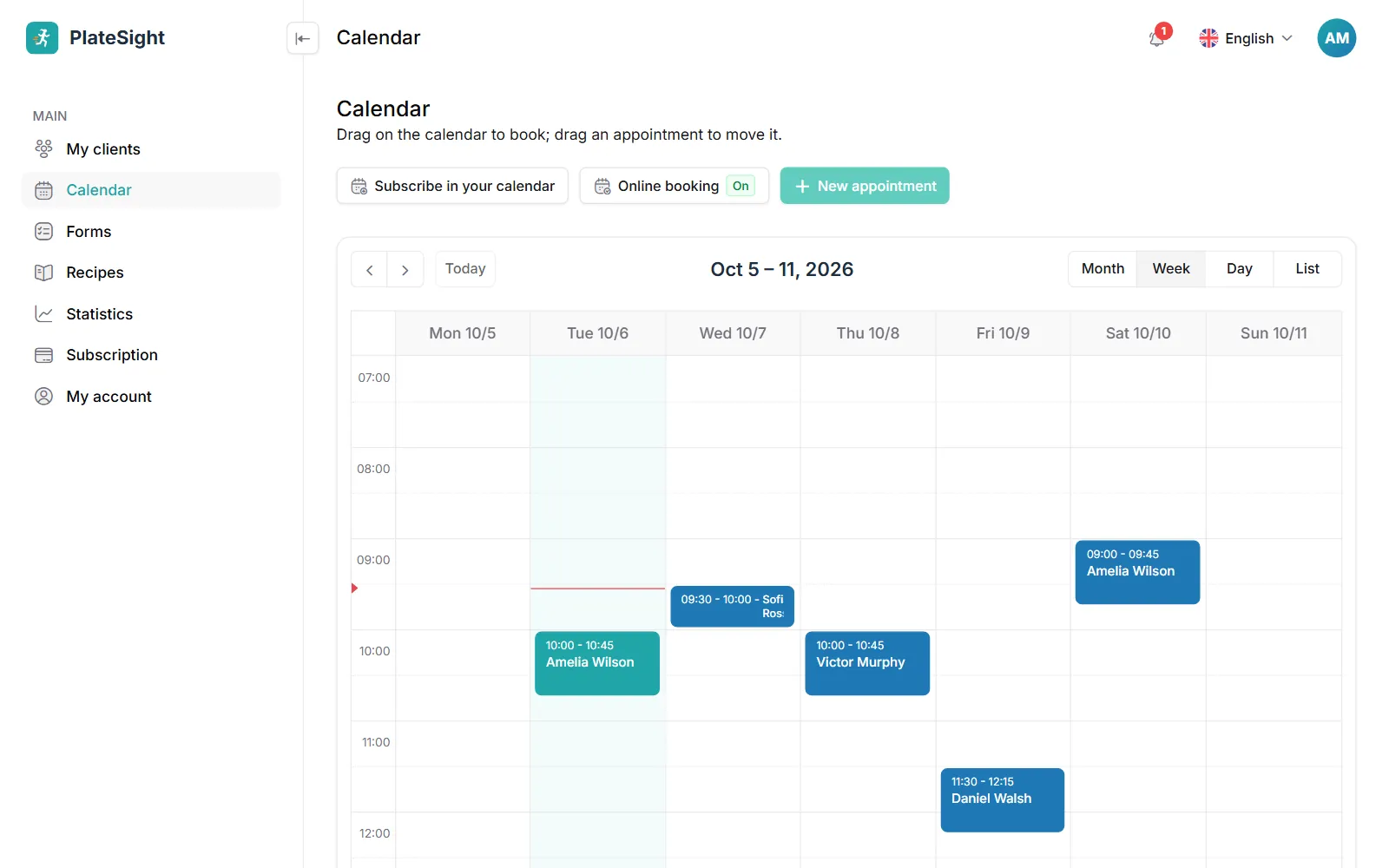
Drag-and-drop calendar
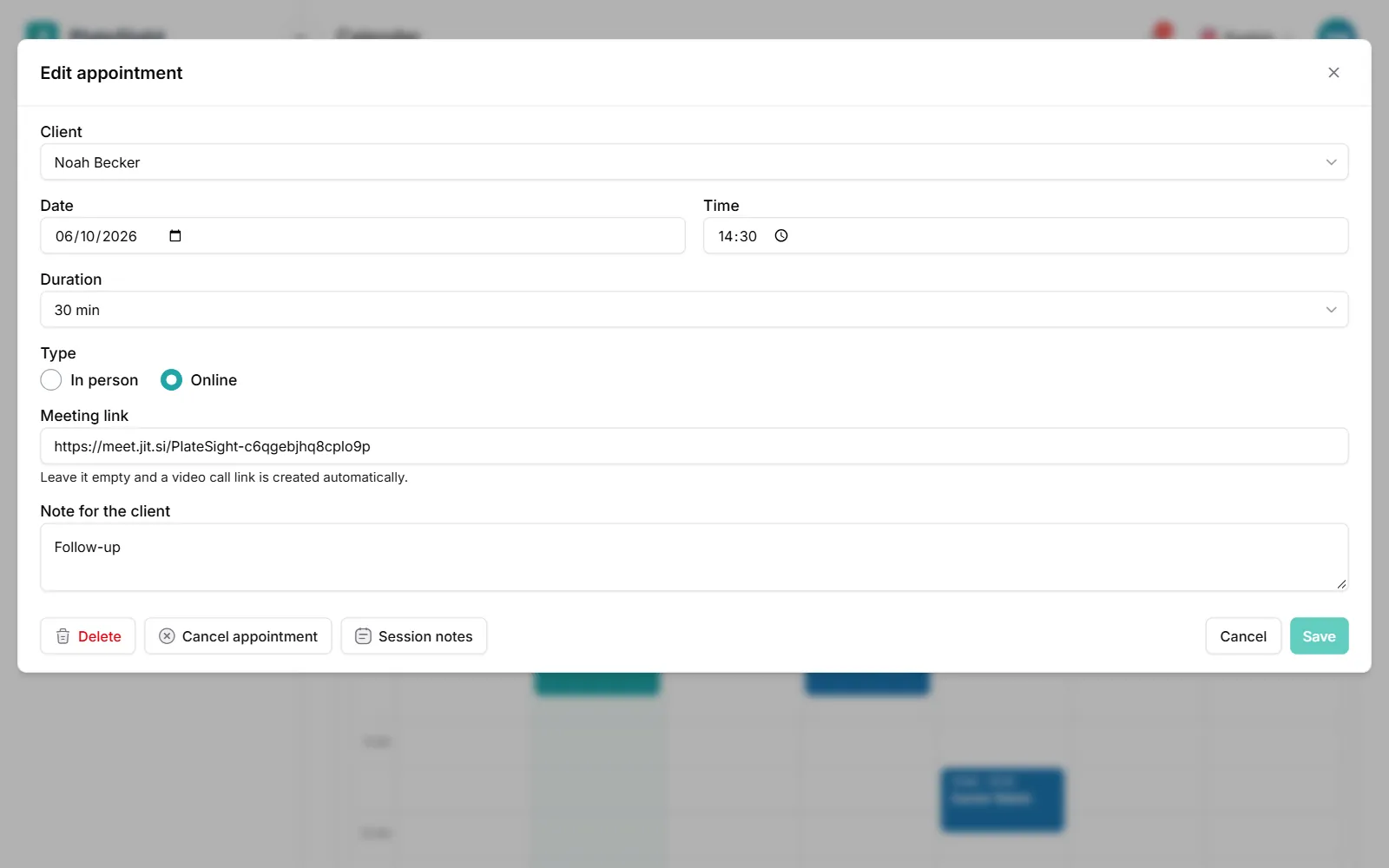
In the dietitian scheduling software you book an appointment by dragging on the calendar, move it with drag and drop and change its length by pulling its edge. Sessions at the same time every week are entered in one go as a recurring appointment. An appointment can be in person or online; the client's “I'll be there” or “I can't make it” reply shows as a mark on the calendar. For a recurring appointment you choose every week, every two weeks or every four weeks and the number of appointments; all of them are added to the calendar at once. You can add an address or a meeting link and a short note to an appointment. From an appointment on the calendar you can go to the client file and write the session note. You can open the calendar in day, week or month view; today's appointments are also listed on the panel's home page. When you drag an appointment to another day, the client gets a notification, and the reminder is set for the new time. Click an appointment to edit its time, type and note, or to cancel it.
- Book and move appointments with drag and drop
- Recurring appointments
- In-person and online appointments
- Client replies marked on the calendar
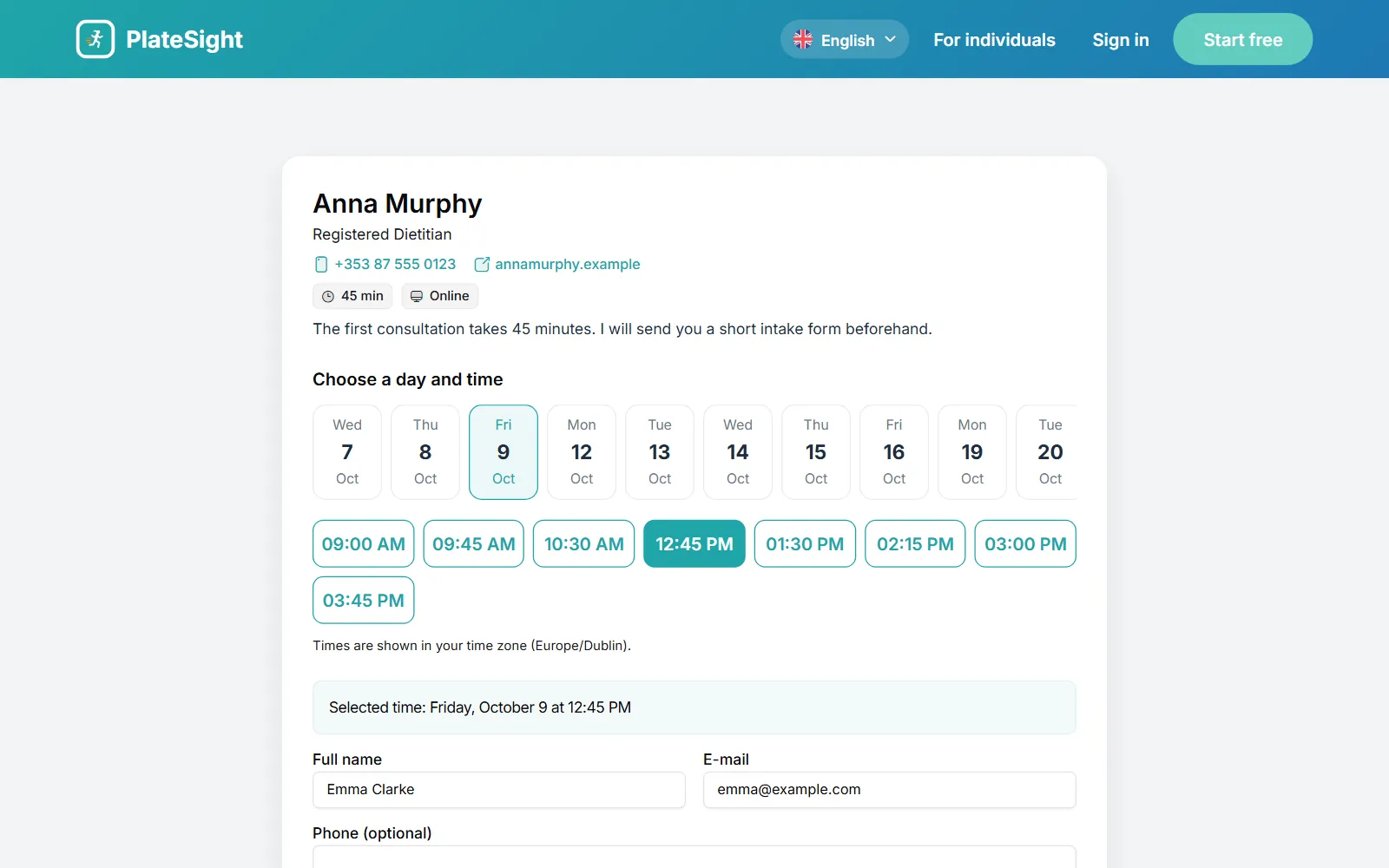
Online booking page
You share your booking link on your website, on social media or in a message. Your clients and new enquiries pick a suitable time in their own time zone and send a request; you approve it with one click, and the appointment lands on your calendar. In the page settings you set your working hours, the appointment length, the minimum notice in hours for a booking and how many days ahead appointments are offered. You can also write a short description and an address or meeting link to show on the page. Incoming requests wait for approval on your calendar; a request you approve becomes an appointment. You can add the page link to your website, your Instagram profile or your WhatsApp messages. Times are shown in the visitor's own time zone, so clients who live abroad do not have to work out the time difference. You can close the online booking page at any time and open it again.
- Your own booking address
- Requests for available times
- One-click approval
- Times shown in the visitor's time zone
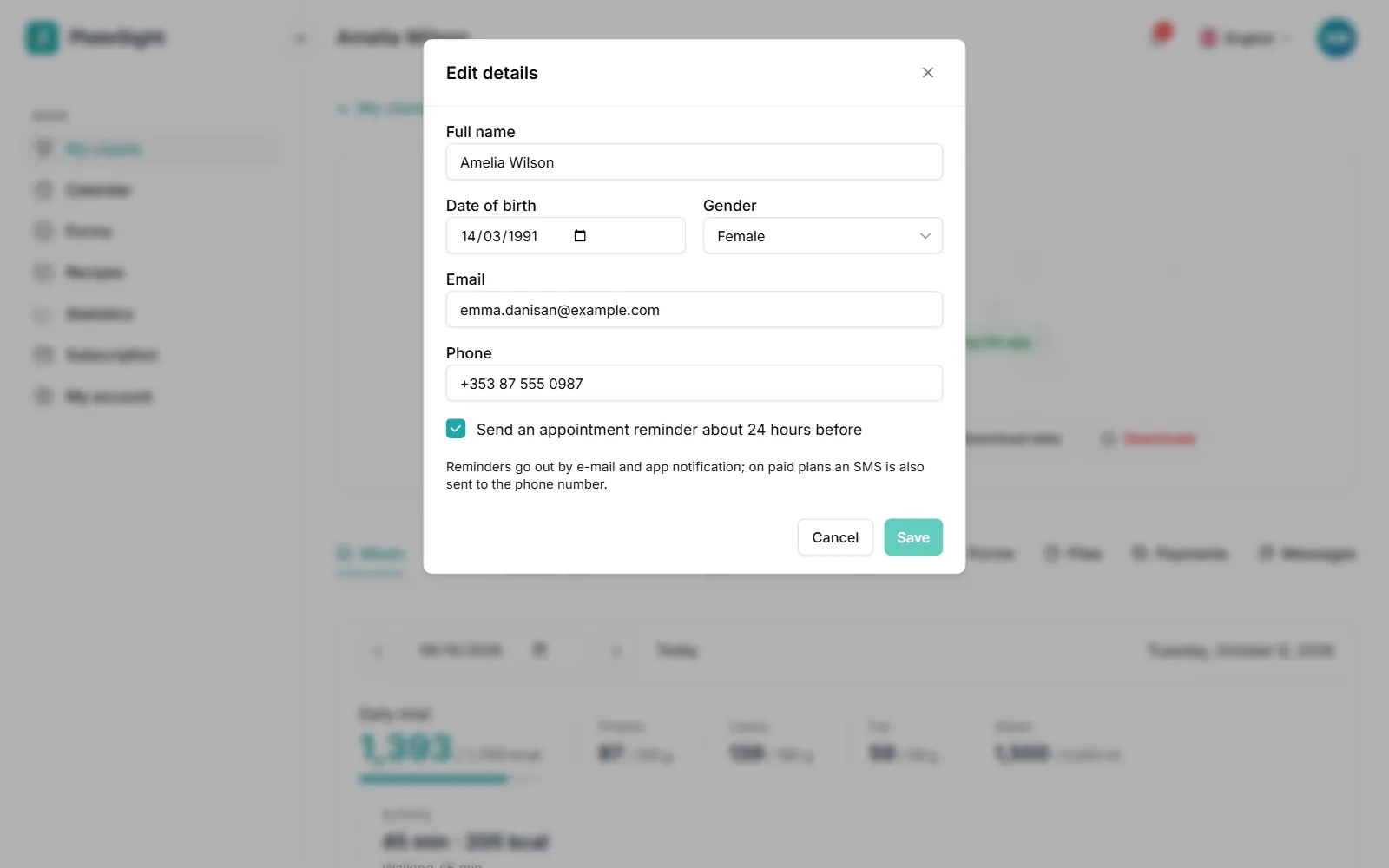
Reminders
Before the appointment, your client automatically receives a reminder by e-mail and app notification. When an appointment is added, moved or cancelled, a notification reaches the client's phone. When an appointment is moved, the reminder is set again for the new time. The client's “I'll be there” or “I can't make it” reply shows as a mark on the calendar; if the appointment time changes, the reply is reset and the client replies again. Reminders go to the client's e-mail address and to the app on their phone; if there is no e-mail address in the client file, only the app notification is sent. So you never have to write reminder messages one by one; reminders are set from the appointment itself and follow every change you make on the calendar.
- Reminders by e-mail and app notification
- Reminder reset when an appointment moves
- Notifications of changes and cancellations
- The client's attendance reply
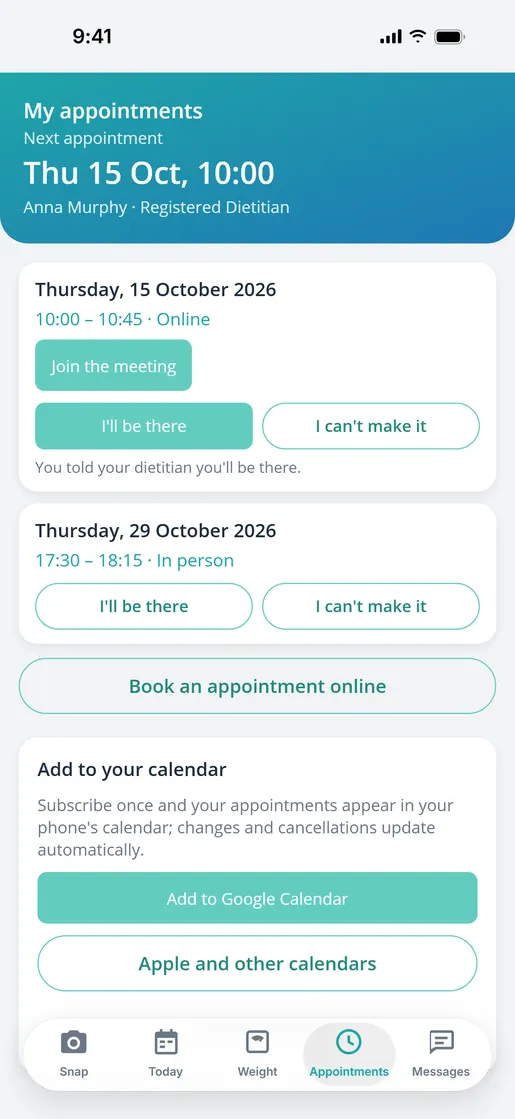
Video calls and calendar subscription
If you do not add your own meeting link to an online appointment, a video call link is created automatically; the client opens it from the app. All your appointments also appear in your Google, Apple or Outlook calendar, and changes update automatically. Your client can add their appointments to their phone's calendar too. For the other tools in the panel, see our dietitian software page. The calendar subscription is a one-time setting: once you add the subscription address to your calendar, new appointments and changes arrive automatically. On the client side, each client has their own calendar address, which they add from the app to Google Calendar or to their phone's calendar. The meeting link sits on the appointment card; at the appointment time the client opens it from the app with one tap. If you prefer your own meeting link, just paste it into the appointment; in that case no automatic link is created. If you enter an address for an in-person appointment, the client sees it on the appointment card. Each client's calendar address is private to them.
- Automatic video call link
- Google, Apple and Outlook calendar subscription
- Clients add appointments to their calendar
- In-person and online clients in one panel
Pricing
Free plan
3 clients, all features
Coming soonStandard plan
Up to 10 active clients
Coming soonPro plan
Up to 50 active clients
Coming soon


Frequently asked questions
Does the dietitian scheduling software work with Google Calendar?
Yes. When you add the subscription address from the Calendar page to your Google, Apple or Outlook calendar, all your appointments appear there, and changes update automatically. Your clients can also add their own appointments to their phone's calendar.
Can clients book appointments themselves?
Yes. When you open your online booking page, clients and new enquiries send requests for available times; a request becomes an appointment once you approve it. The request appears on your calendar as awaiting approval; a request you do not approve does not become an appointment.
How are clients reminded of their appointments?
Before each appointment, the client automatically receives a reminder by e-mail and app notification; this is included in every plan. If there is no e-mail address in the client file, only the app notification is sent. When an appointment is moved, the reminder is set again for the new time.
Can I create recurring appointments?
Yes. You can enter regular sessions, such as weekly ones, in one go as a recurring appointment. The options are every week, every two weeks or every four weeks.
What do I need for a video call?
If you do not add your own link to an online appointment, a video call link is created automatically. The link opens in the browser on a computer; on a phone, the video service may ask you to install its own app. Your client opens the link from the appointment card in the app. If you prefer your own meeting link, simply add it to the appointment.
Is the client notified when an appointment changes?
Yes. When an appointment is added, moved or cancelled, a notification goes to the client's app. When the time changes, the client's earlier reply is reset and they reply again. The reminder is also set for the new time.
Related pages and guide articles
With your permission, we use Google Analytics cookies to collect visit statistics that help us improve our website. We do not use advertising cookies. Cookie policy