































Meal planning software: write the plan, your client sees it in the app
With PlateSight's meal planning software you write a meal plan in minutes by searching the food list; calorie and macro totals are calculated as you type. The plan can be printed, but the real difference is that it goes to your client's phone: the client sees the plan in the app and logs a meal with one tap on “I ate this”. Below you will find how a plan is written, how recipes are added to it, how the client sees the plan in the app and how goals are calculated. You do not need a separate file, spreadsheet or word processor to write a plan; the plan is stored together with the client's file.
Plans from the food list
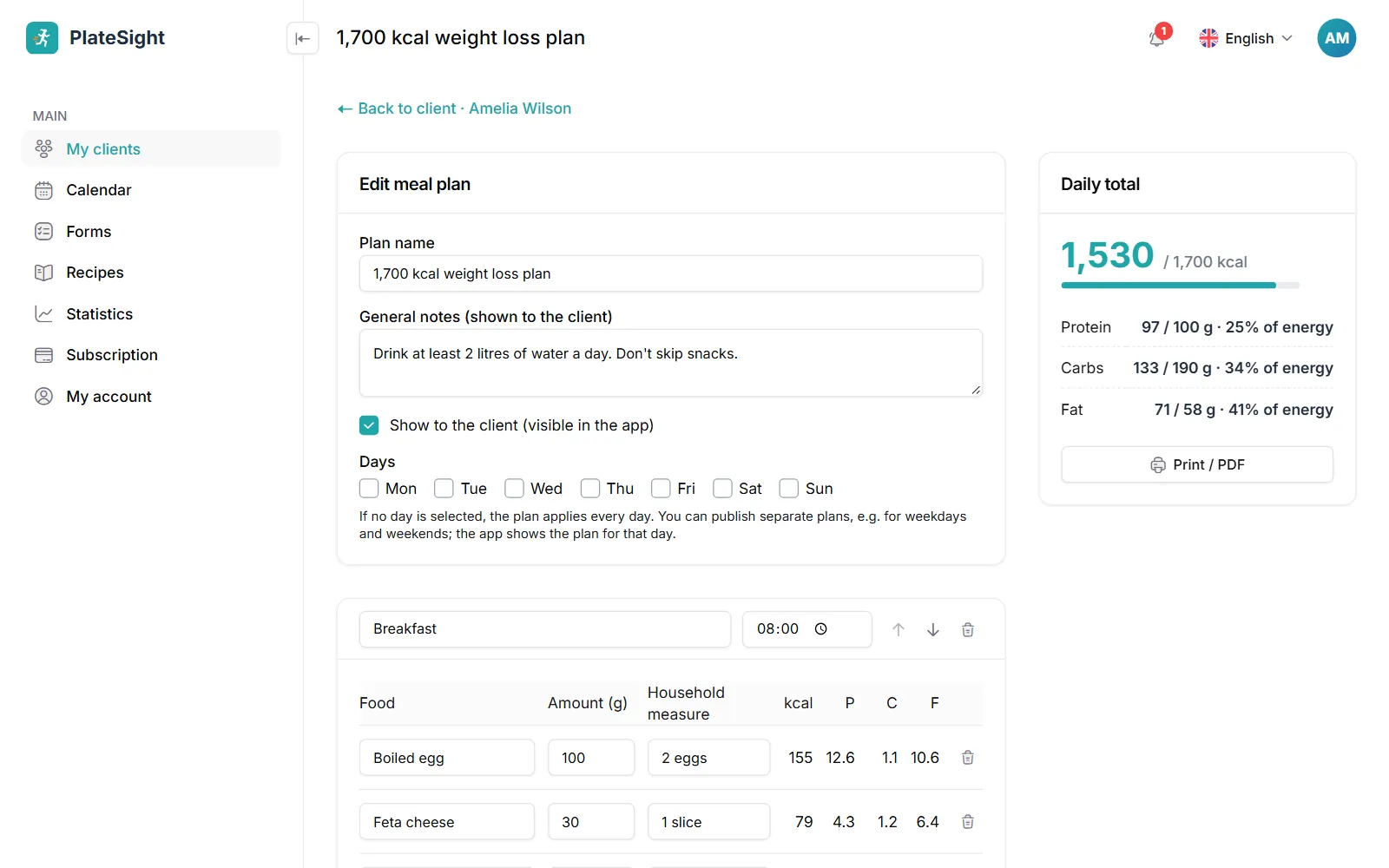
In the meal planning software you add items to each meal by searching the food list, and enter the grams and a measure such as “1 slice” or “1 bowl”. Calorie, protein, carbohydrate and fat totals for each meal and for the day are calculated automatically. You can prepare different plans for different days of the week, and copy a plan to adapt it for another client. In a plan you give meals a name and a time, for example “Breakfast 08:00” or “Snack 10:30”, and you can write a short note for each meal. General notes on the plan, such as the daily amount of water or meals that should not be skipped, are shown to the client at the top of the plan. Because the calorie and macro totals update as you add items, you see straight away how close you are to the goal while writing the plan. You search the food list by food names in the language of your panel; the calories, protein, carbohydrate and fat per 100 grams of the food you choose are copied to the item. When you split the plan by day, you can write, for example, one set of meals for Monday, Wednesday and Friday and another for the other days; the client sees the plan for that day in the app.
- Search the food list and enter grams
- Meal and day totals calculated automatically
- Different plans for different days
- Copy a plan
Recipe library
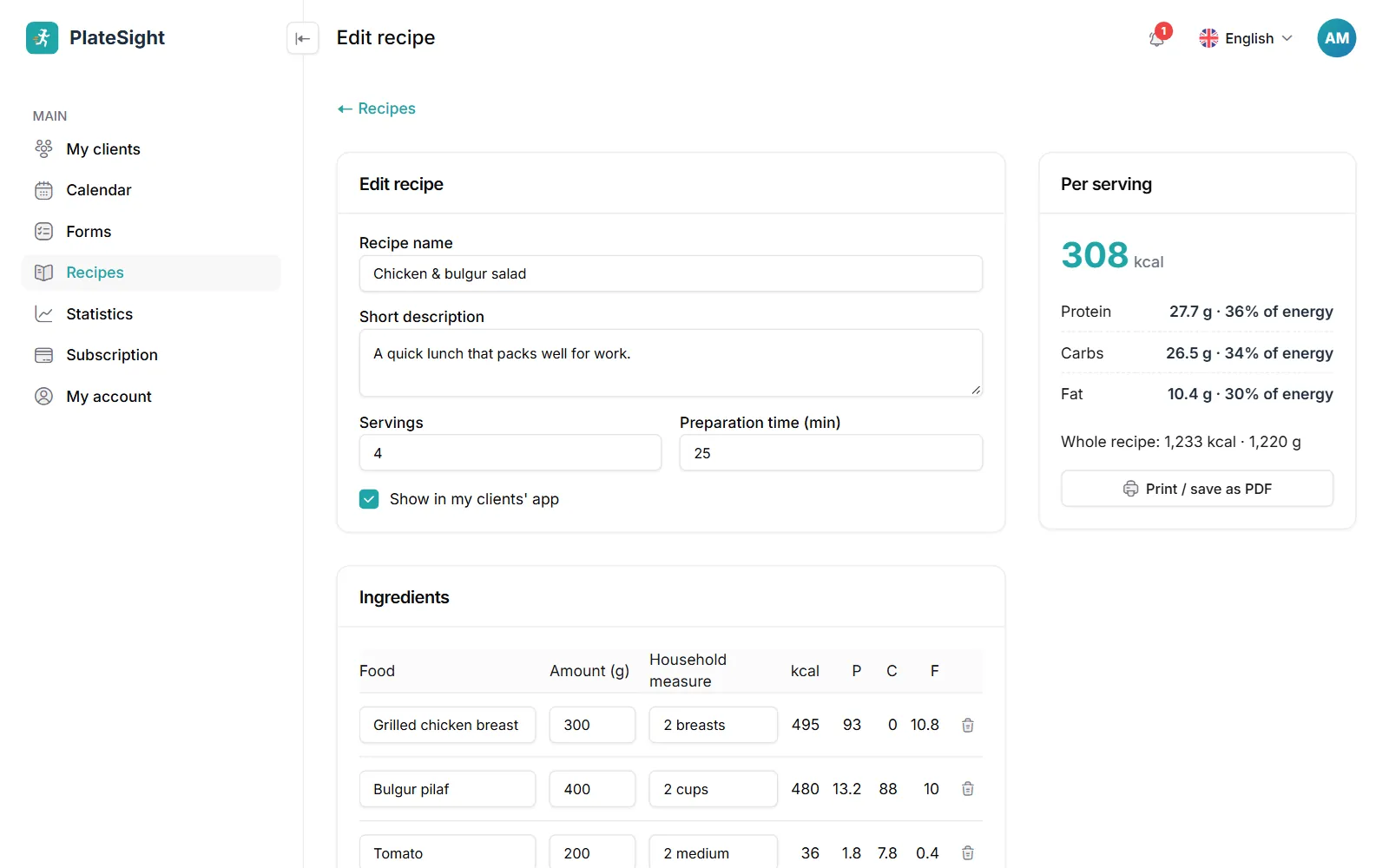
You build your own recipes from the food list; calories and macros per serving are calculated from the ingredients. You add recipes to meal plans and share them with your clients. Your client sees the recipe's ingredients and method in the app, and the ingredients in the plan turn into a shopping list. In a recipe you enter the ingredients with their grams, the number of servings, the preparation time and the method; the panel calculates the calories and macros for one serving. When you add a recipe to a plan, the plan's totals are updated with the recipe's values. You can use the same recipe in many clients' plans and grow your recipe library over time. You can also print your recipes and give them to a client on paper; the printed page includes the ingredients, the values per serving and the method. Because you choose a recipe's ingredients from the food list, the recipe's values are based on the same food data as the plan.
- Calories and macros per serving
- Add a recipe to a plan
- The client sees ingredients and method in the app
- Print recipes
Your client sees the plan in the app
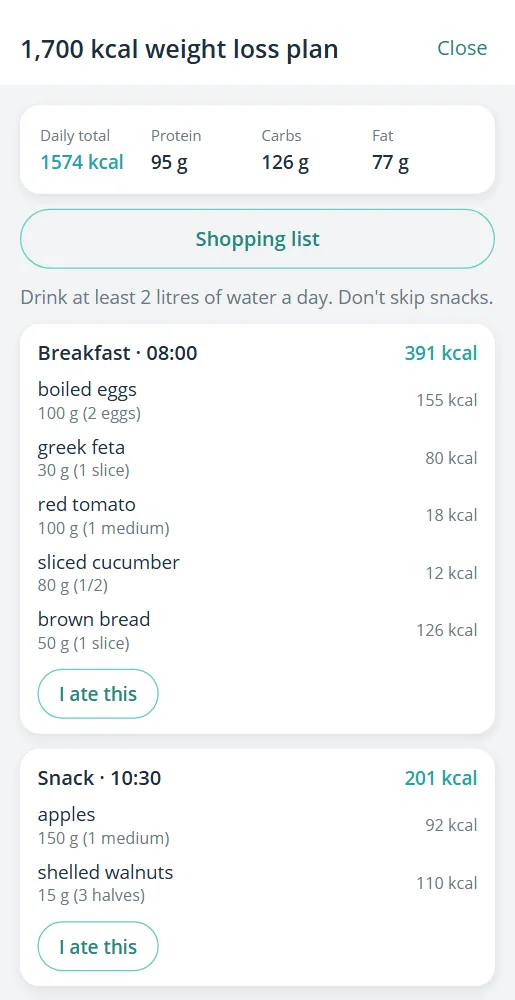
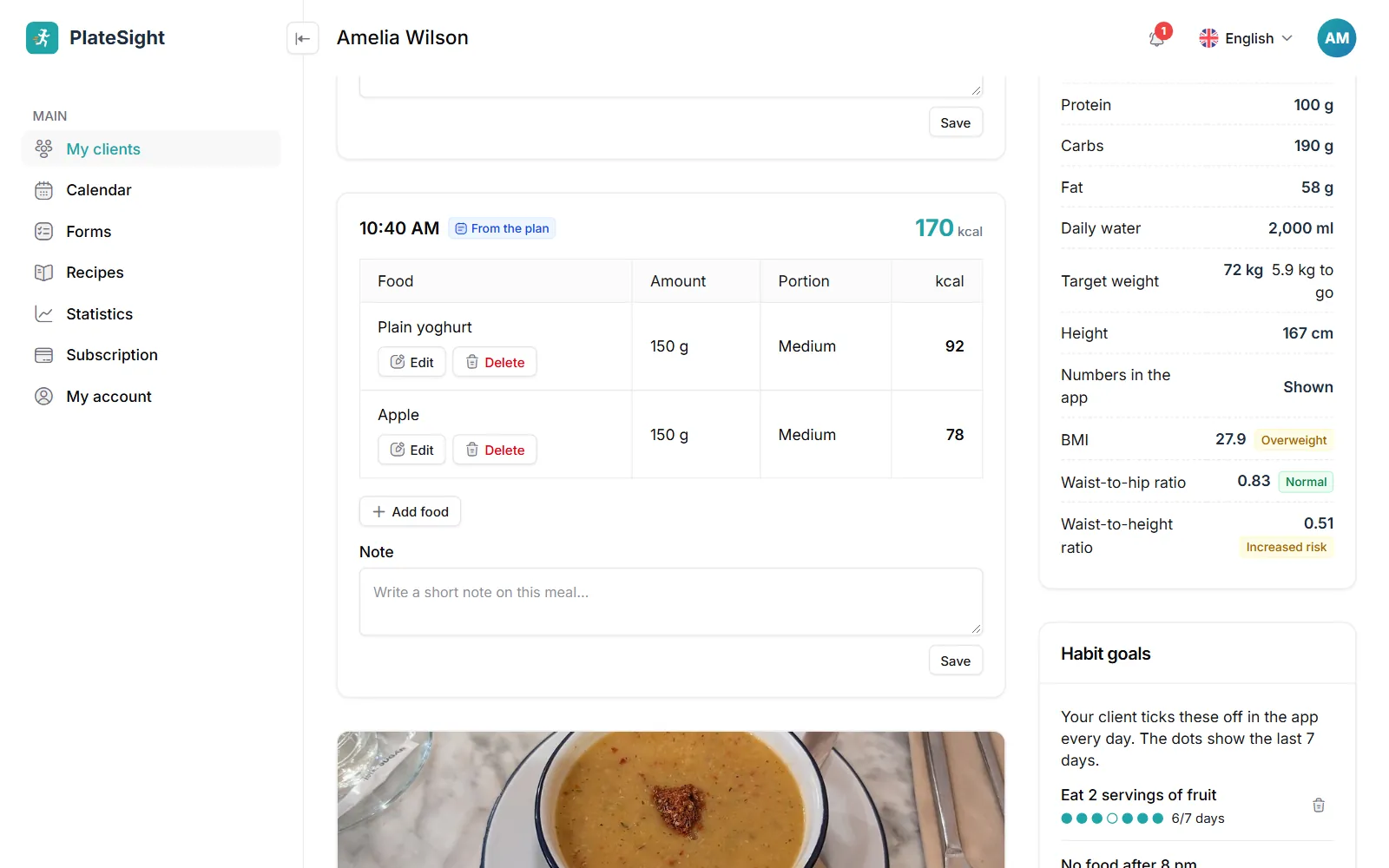
The plan you publish appears meal by meal in the client's app. When the client eats a planned meal, they log it with one tap on “I ate this”; the meal appears in your panel marked “From the plan”, with its calories and macros. The shopping list also comes from the plan. For the other features of the client app, see our dietitian app page. When your client picks a meal from the plan instead of photographing it, the calories and macros come from the values in the plan; in the panel, the “From the plan” label sets these records apart from photo meals. When you update the plan, the client always sees the latest version in the app and gets a notification. On the day they cook, the client opens the shopping list on their phone. Meals the client logs from the plan are added to the day's total, so you can follow how closely the client sticks to the plan from the meals and the daily total. If the client ate something different from the plan, they log it with a photo; that meal appears in the panel separately from the planned ones, and you easily notice how it differs from the plan.
- The plan on the client's phone
- One-tap logging with “I ate this”
- “From the plan” label in the panel
- Shopping list from the plan
Goals and energy calculation
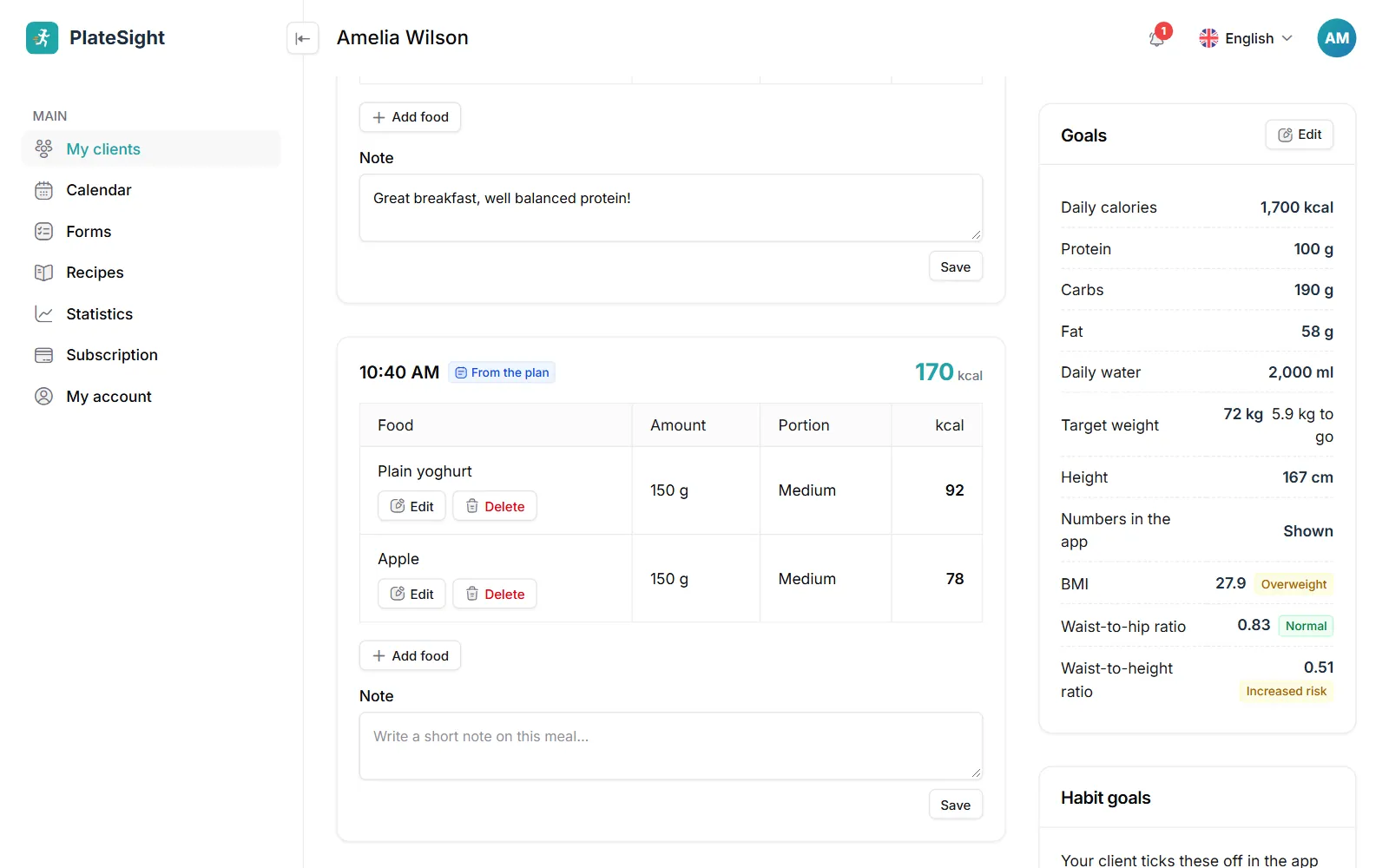
The energy calculator works out the client's daily energy needs from their height, weight, age and activity level; you set the macro split. When you save calorie, macro and water goals in the client file, the client sees their progress against the goal in the app every day. You can print the plan or save it as a PDF. The value the calculator gives can be saved as the goal or changed by hand. You enter the macro split as a percentage of energy, and the gram equivalents are calculated. From height and weight, the body mass index and the WHO class are shown too; the target weight appears as a dashed line on the weight chart. Goals are changed on the Goals card in the client file; in the app the client sees their daily total, water and macros against these goals with progress bars.
- Energy calculator
- Macro split and water goal
- Daily progress against the goal
- Print the plan or save it as a PDF
Pricing
Free plan
3 clients, all features
Coming soonStandard plan
Up to 10 active clients
Coming soonPro plan
Up to 50 active clients
Coming soon


Frequently asked questions
Does the meal planning software have a ready-made food list?
Yes. You write the plan by searching the food list; the values per 100 grams of the food you choose are copied to the item, and the totals are calculated automatically. A food you cannot find in the list can be added as your own recipe or as a free-text item. Nutrient values are kept per 100 grams; when you change an item's grams, the values are recalculated.
Can I prepare different plans for different days of the week?
Yes. You can split the plan by day, for example writing different meals for weekdays and the weekend. The client sees that day's meals in the app.
Can I print the plan?
Yes. You can print the plan or save it as a PDF from the browser; recipes can be printed too. The printed plan includes the meals, times, items and totals.
Can I use a plan for another client?
Yes. You can copy a plan and adapt it for another client. In the copied plan you change the items and grams to suit the new client's goal.
How does the client see the plan?
The plan you publish lands in the client's PlateSight app, and a notification is sent. The client sees the plan meal by meal, opens the shopping list and logs a meal they ate by tapping “I ate this”. They can also open the ingredients and method of the recipes in the plan. The plan sits as a card on the client's Today screen; opening the card shows the whole plan.
Are calorie and macro totals calculated automatically?
Yes. Calorie, protein, carbohydrate and fat totals for each item, meal and day are calculated as you type. The totals are shown at the top of the plan and in each meal's heading.
Related pages and guide articles
With your permission, we use Google Analytics cookies to collect visit statistics that help us improve our website. We do not use advertising cookies. Cookie policy